First Focus

F-Connect: Everything You Need from First Focus in One Place

F-Connect gives you visibility over tickets, people, projects and strategy. All in one place, tailored to your business. Whether you're onboarding or scaling, it's how we stay aligned and accountable - and this manual shows you exactly how it works.

F-Connect Animation
Cloudtango 9 years running award banner

F-Connect Manual

This manual introduces all key features of F-Connect: the First Focus support platform. F-Connect is your central point of access for managing requests, chatting directly with technicians, and staying aligned with our team — all in one streamlined, easy-to-use interface.

Use the menu on the left to explore topics at your own pace.

If you haven't used F-Connect before, start with the first section: "Access F-Connect".

F-Connect Manual

Through a Web Browser

Access F-Connect Through your Browser

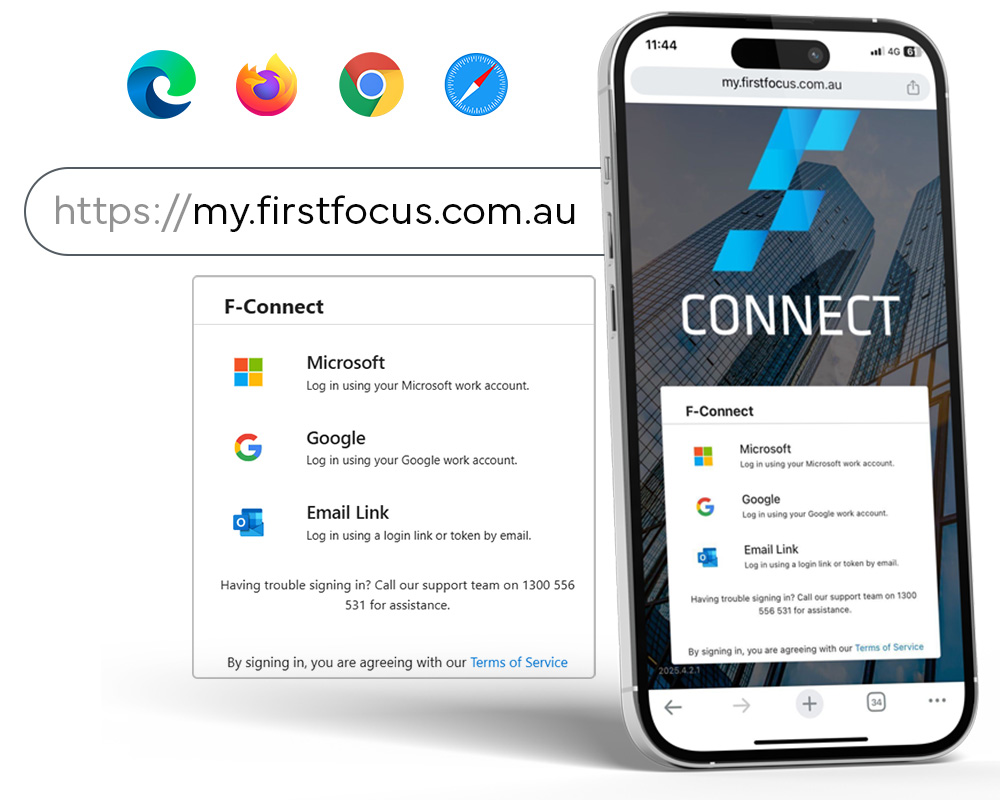
You can access F-Connect anytime, anywhere through a web browser. Just open your favourite browser and type the following address.

https://my.firstfocus.com.au

Access Through Browser 1

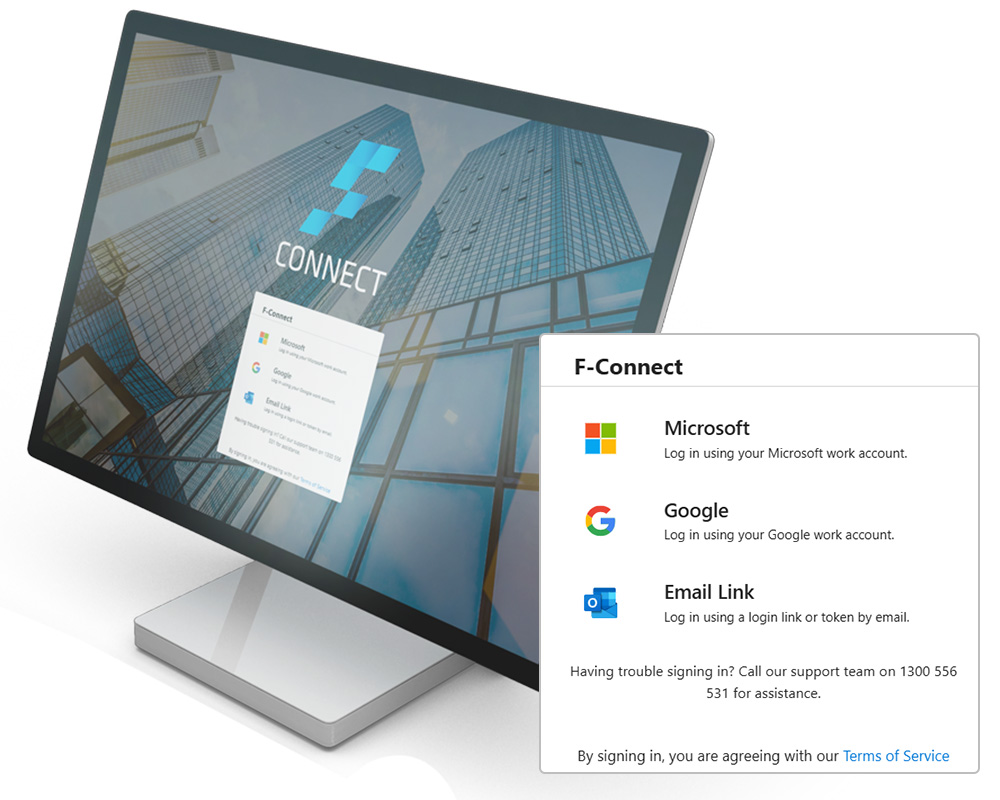
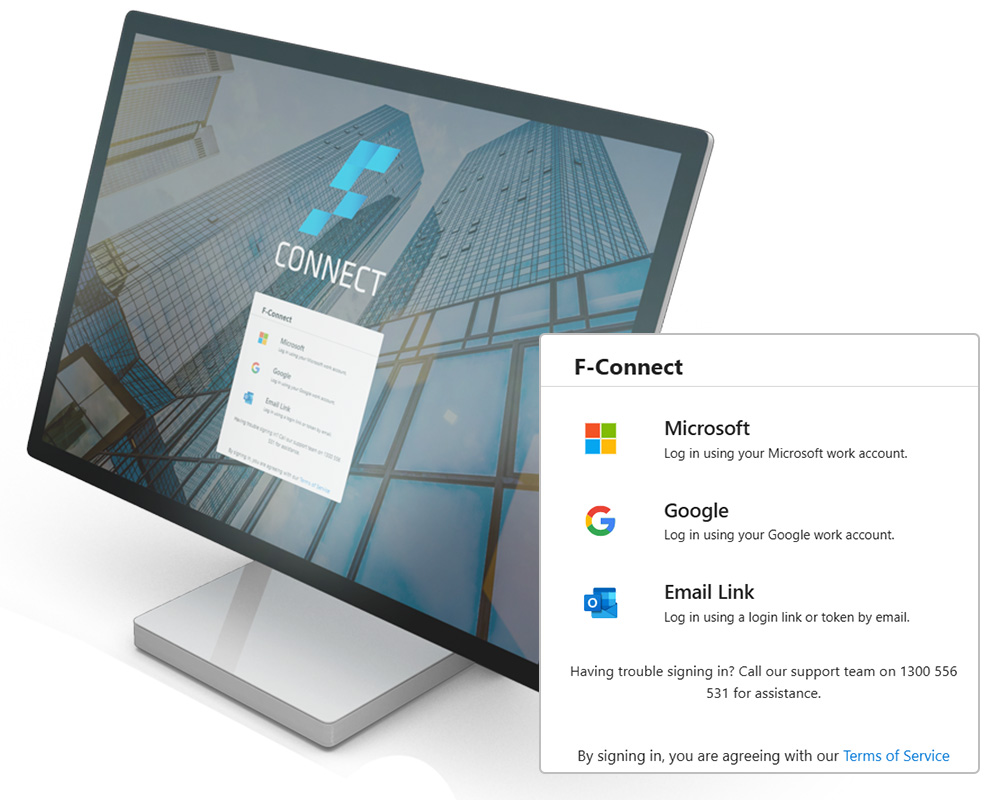
Log in

Use your work credentials to log in. You can access using your Microsoft account, your Google work account, or an email link.
Access Through Browser 2

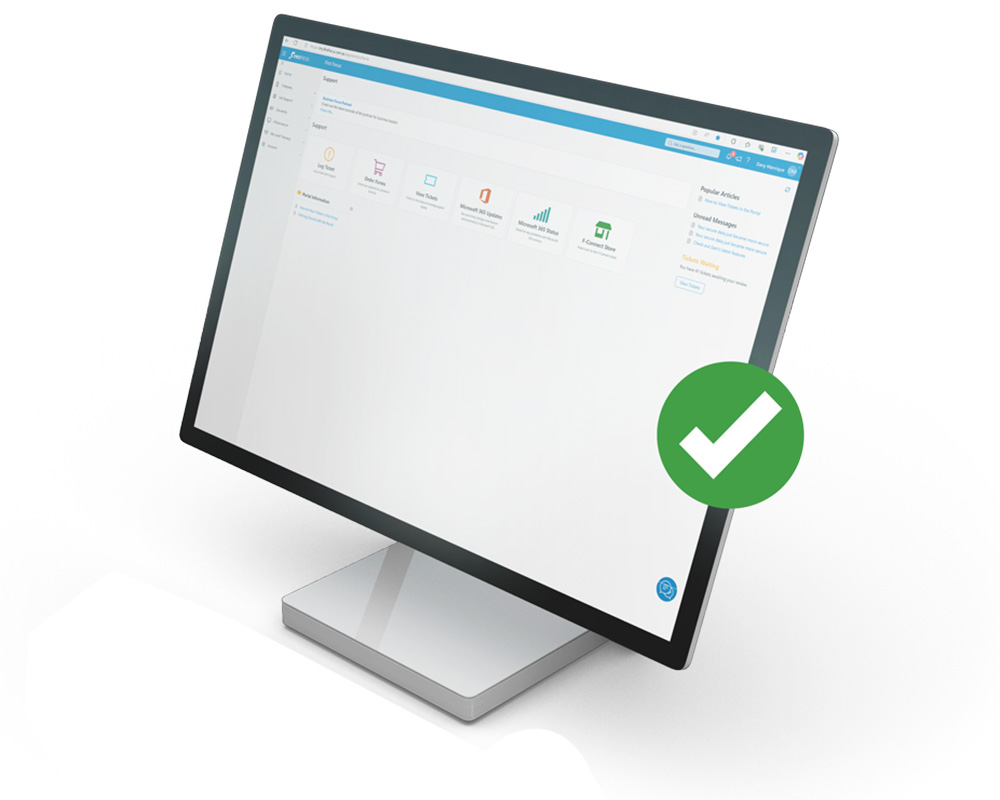
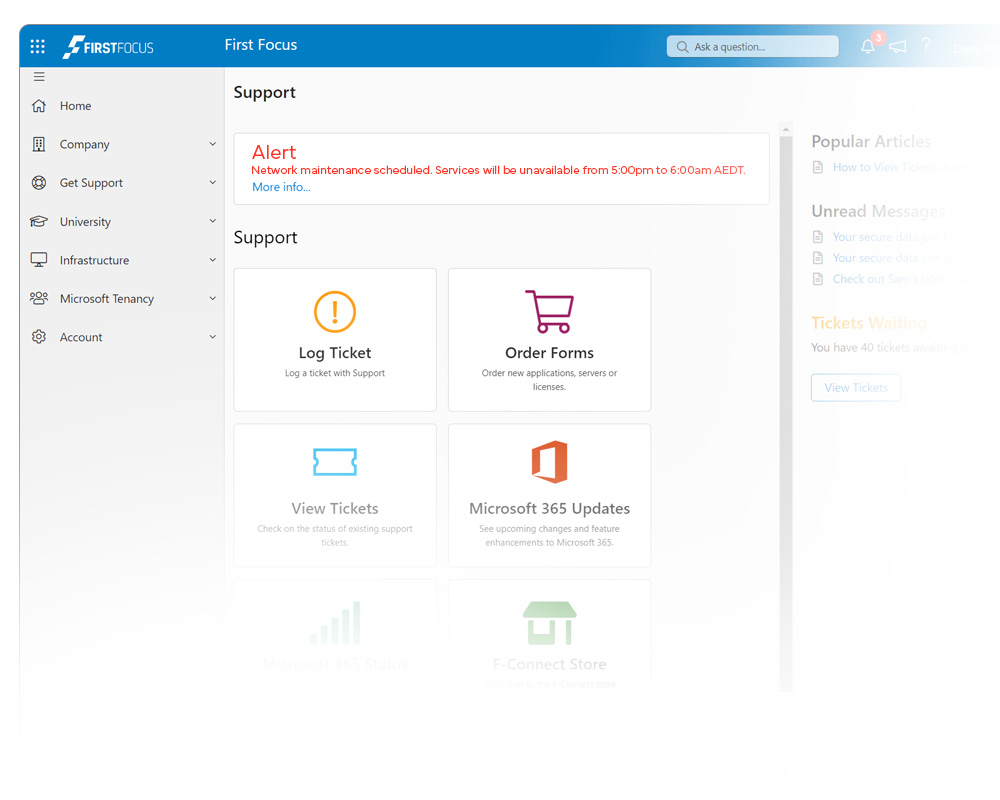
You're Inside F-Connect!

Now you have access to all the features that F-Connect offers. You can log tickets, manage them, access metrics, and much more.

Access Through Browser 3

Using Microsoft Teams

F-Connect on Teams:

You can access F-Connect anytime through your Microsoft Teams app.

F-Connect on Teams 1

Install the App

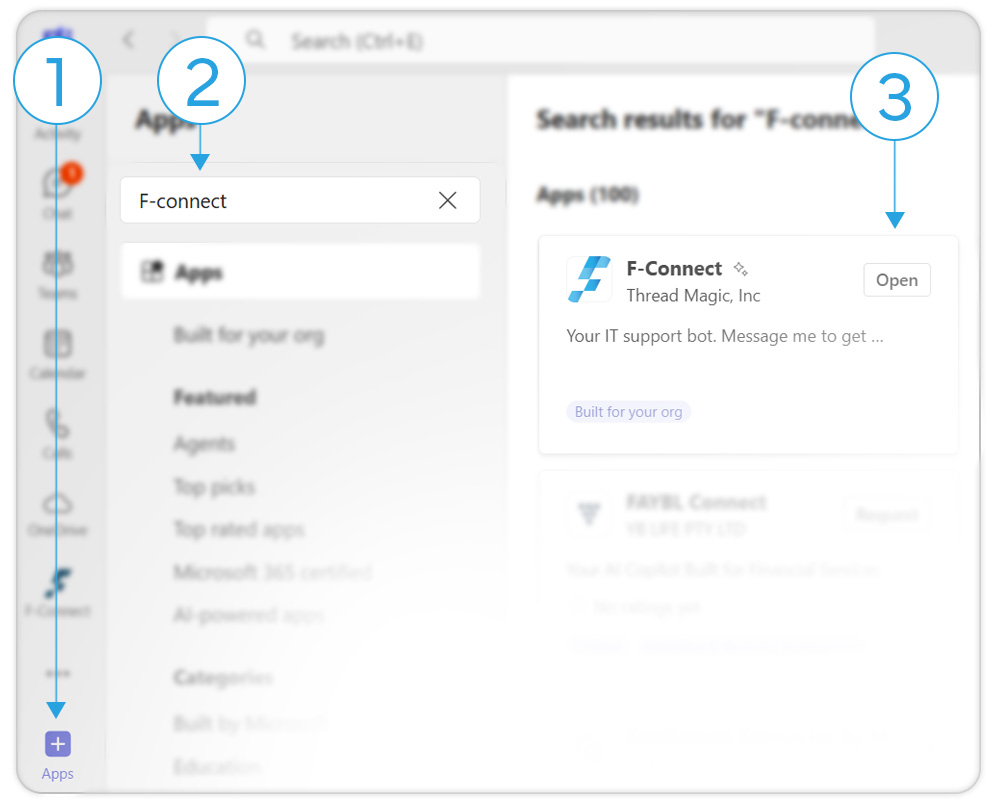
If the App is not added by default by your organisation, follow the steps below to ensure the app is installed on Microsoft Teams:

  1. Go to Apps inside Microsoft Teams.
  2. Search for F-Connect.
  3. Click Install, Request, or Open, depending on the case.
F-Connect on Teams 2

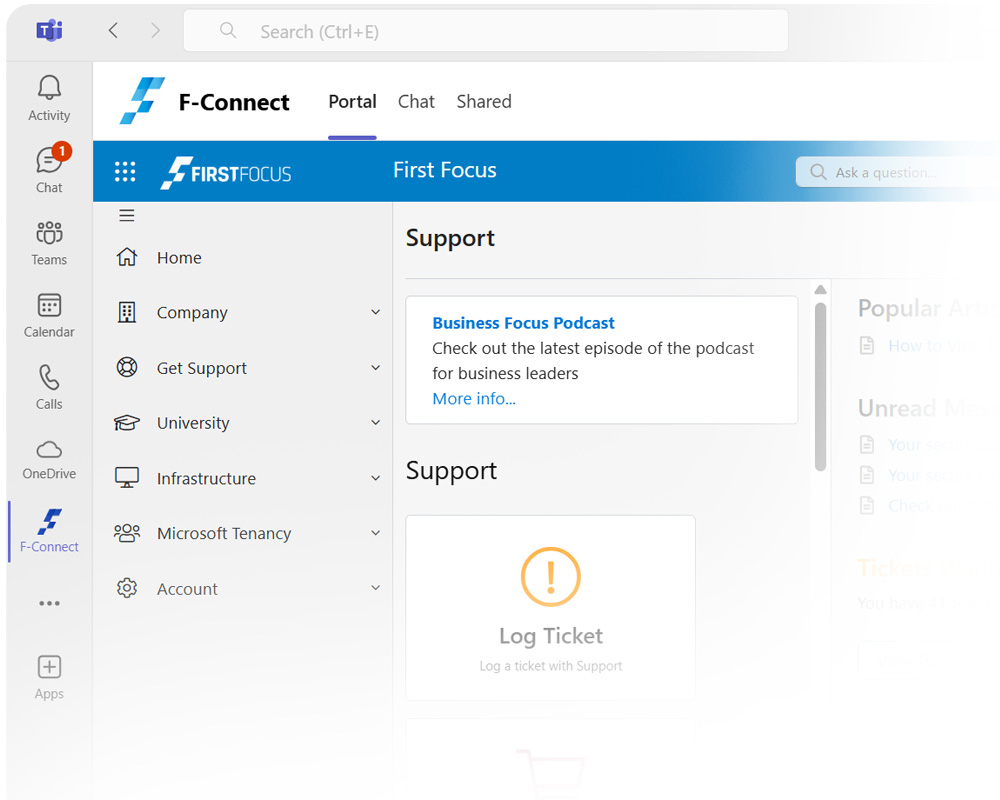
You're All Set to Go

The app will always be available within Microsoft Teams with all its features. You can find it on the left menu bar or inside the Apps section.

F-Connect on Teams 3

Desktop App

Desktop App

F-Connect can also be installed as a standalone desktop app on your computer.

Desktop App 1

Access F-Connect Desktop App

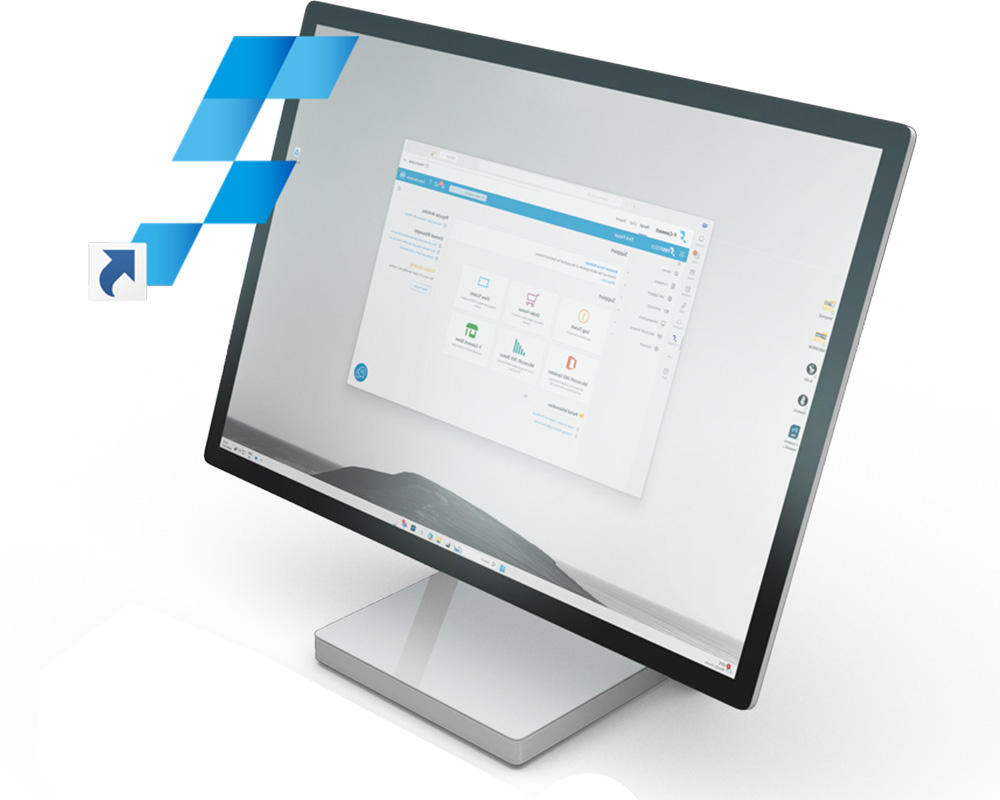
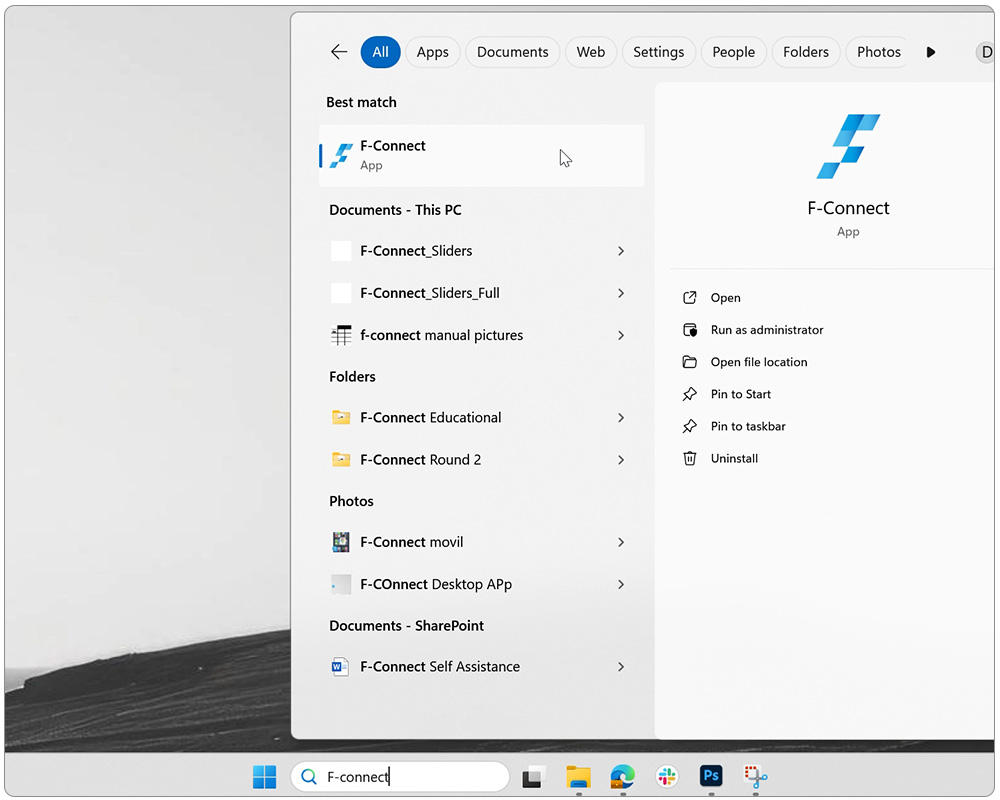
The F-Connect Desktop App is installed on your organisation's computer, and you can access it like any other software:

  1. Search for it in your apps.
  2. Create a shortcut.
Desktop App 2

Log in and You're All Set

Enter your credentials, usually associated with your Microsoft account. Follow the authentication process, and you're in. If it's your personal computer, you may stay logged in.

Desktop App 3

Mobile App

Using F-Connect on Your Smartphone

You can access F-Connect and all its functionalities through your smartphone or tablet, wherever you are.

Smartphone 1

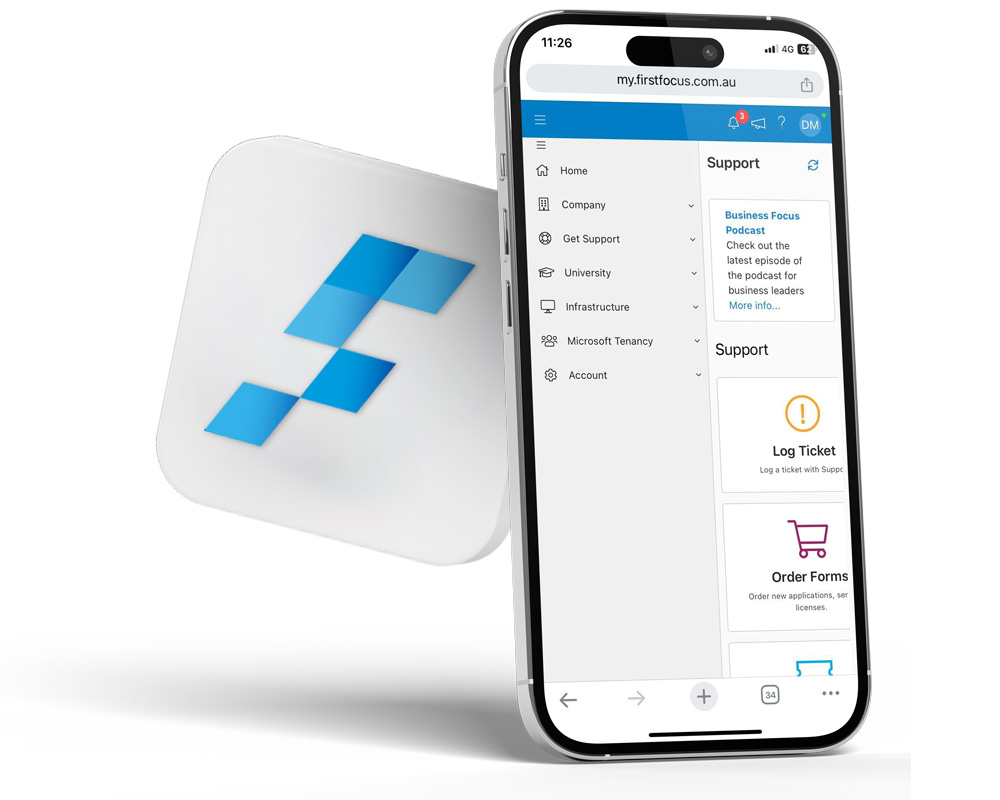
Access F-Connect From Your Mobile Browser

The first way to access F-Connect from your mobile is through your web browser.

  1. Go to https://my.firstfocus.com.au/
  2. Log in using your work email credentials.
  3. You're inside f-connect
Smartphone 2

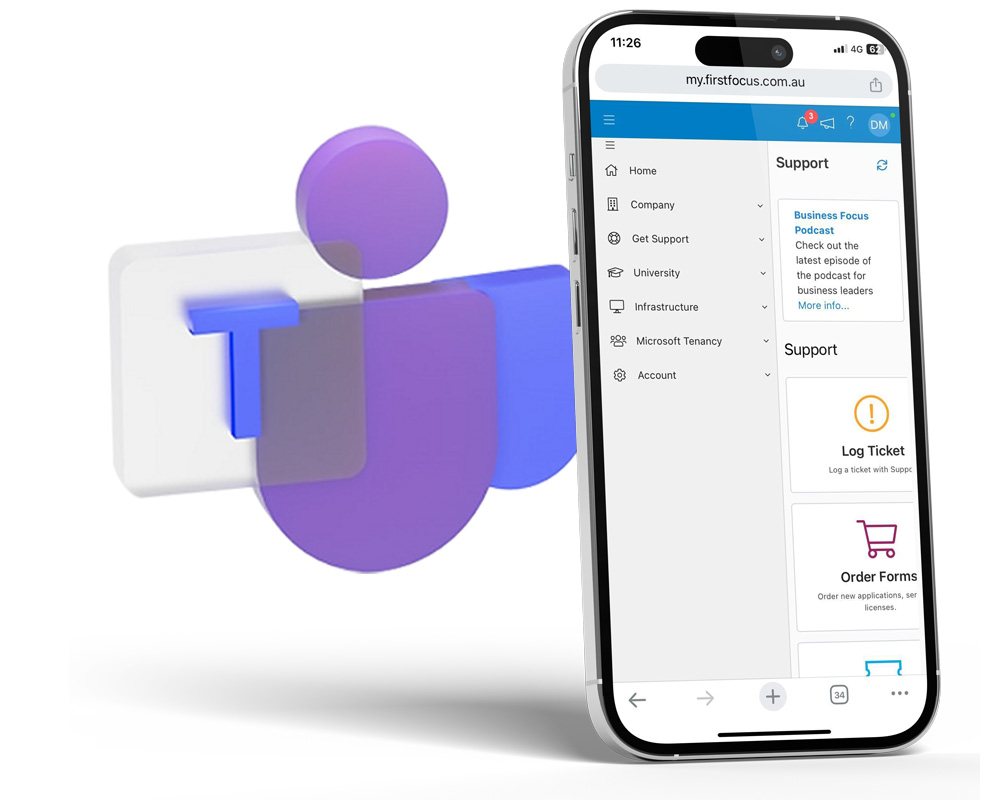
Access F-Connect From Your Microsoft Teams App

You can install F-Connect as an app within your Microsoft Teams mobile app. This integration ensures that you have seamless access to F-Connect anytime you need it from your smartphone.

Smartphone 3

Training

Training on the Home Page

F-Connect is more than just a ticketing system. It is also the central place to access support resources and training.

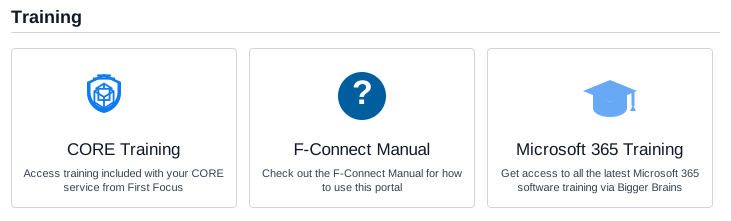
The previous University feature and the University > Courses tab have now been removed. Training is now available directly from the Home Page through dedicated tiles for the F-Connect Manual, Microsoft 365 Training, and CORE Training for CORE clients.

Training options on the F-Connect home page

What's Available

The F-Connect Manual tile takes you to the portal guide, so users can quickly learn how to navigate and use F-Connect.

Microsoft 365 Training is the new training experience, giving users access to current Microsoft 365 learning content through Bigger Brains.

CORE Training is shown for CORE clients and provides access to the training included with their CORE service.

Access Training Quickly

From the Home Page, select the training tile that matches what you need. This keeps manuals and training resources visible in one place as soon as you open F-Connect.

If you are looking for help using the portal, open the manual. If you want broader Microsoft 365 skills training, use Microsoft 365 Training. CORE clients can also open CORE Training directly from the same area.

Quick Access

  1. Open the F-Connect Home Page.
  2. Choose F-Connect Manual, Microsoft 365 Training, or CORE Training.
  3. Start learning from the option that fits your role and access level.

Notification Broadcasts

Notification Broadcast

Notification broadcasts on F-Connect play a crucial role in maintaining productivity by ensuring that users receive timely updates about outages, service interruptions, or other significant issues.

These notifications appear as pop-up messages for all affected users and within the F-Connect app, keeping teams informed and enabling them to take immediate action when necessary.

By delivering real-time updates, F-Connect helps minimise downtime, reduce disruptions, and keep workflows running smoothly. That way, everyone stays aligned and focused on what matters most.

Notification 1

Where Do Notifications Appear?

They will appear as pop-ups on all users' computers, inside F-Connect Notifications, and also on the app's home screen.

Notification 3

FF Applications

Applications and Shortcuts

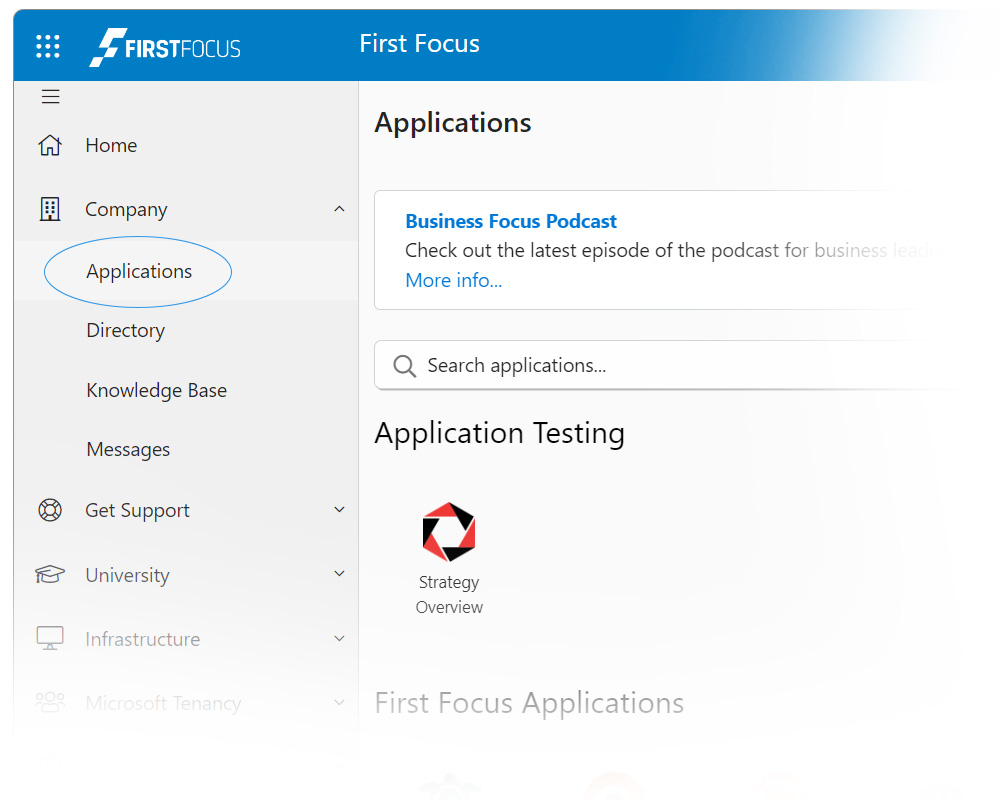
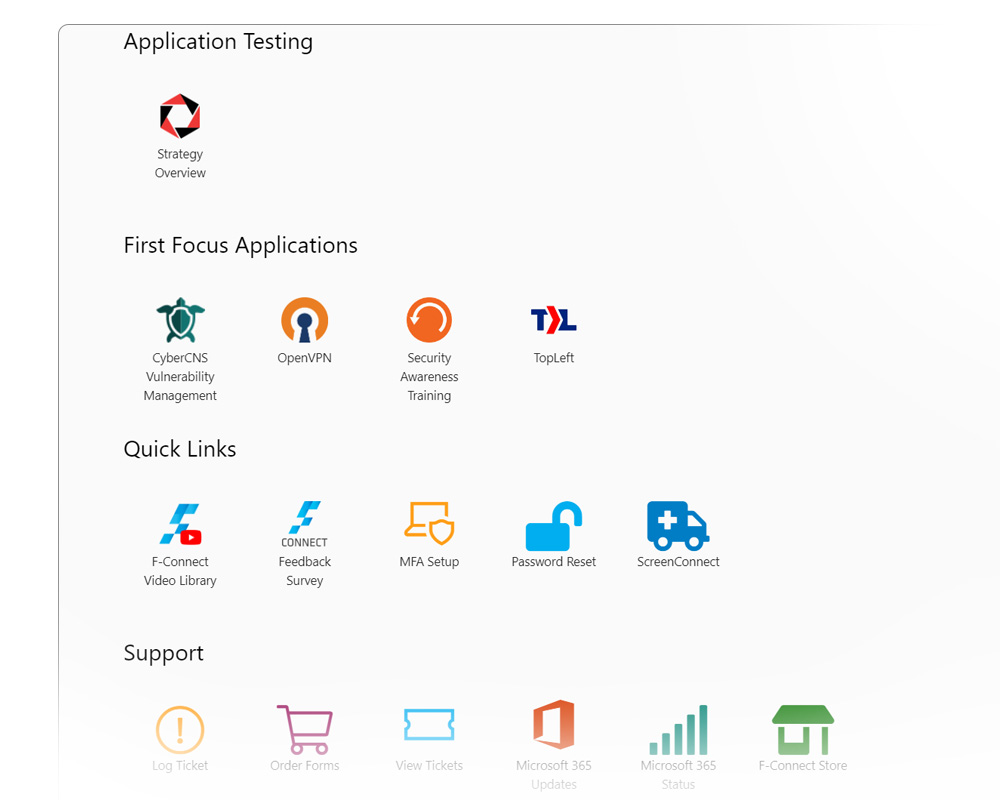
Inside F-Connect Users can access important applications and resources directly from the app, reducing the time spent searching for these tools across different platforms.

Applications and Shortcuts 1

All Your IT Essentials in One Place

Common links to apps and features, such as password reset and MFA linking, will appear in this section, centralising everything you need in your IT environment.

Applications and Shortcuts 2

Planner

What is Planner?

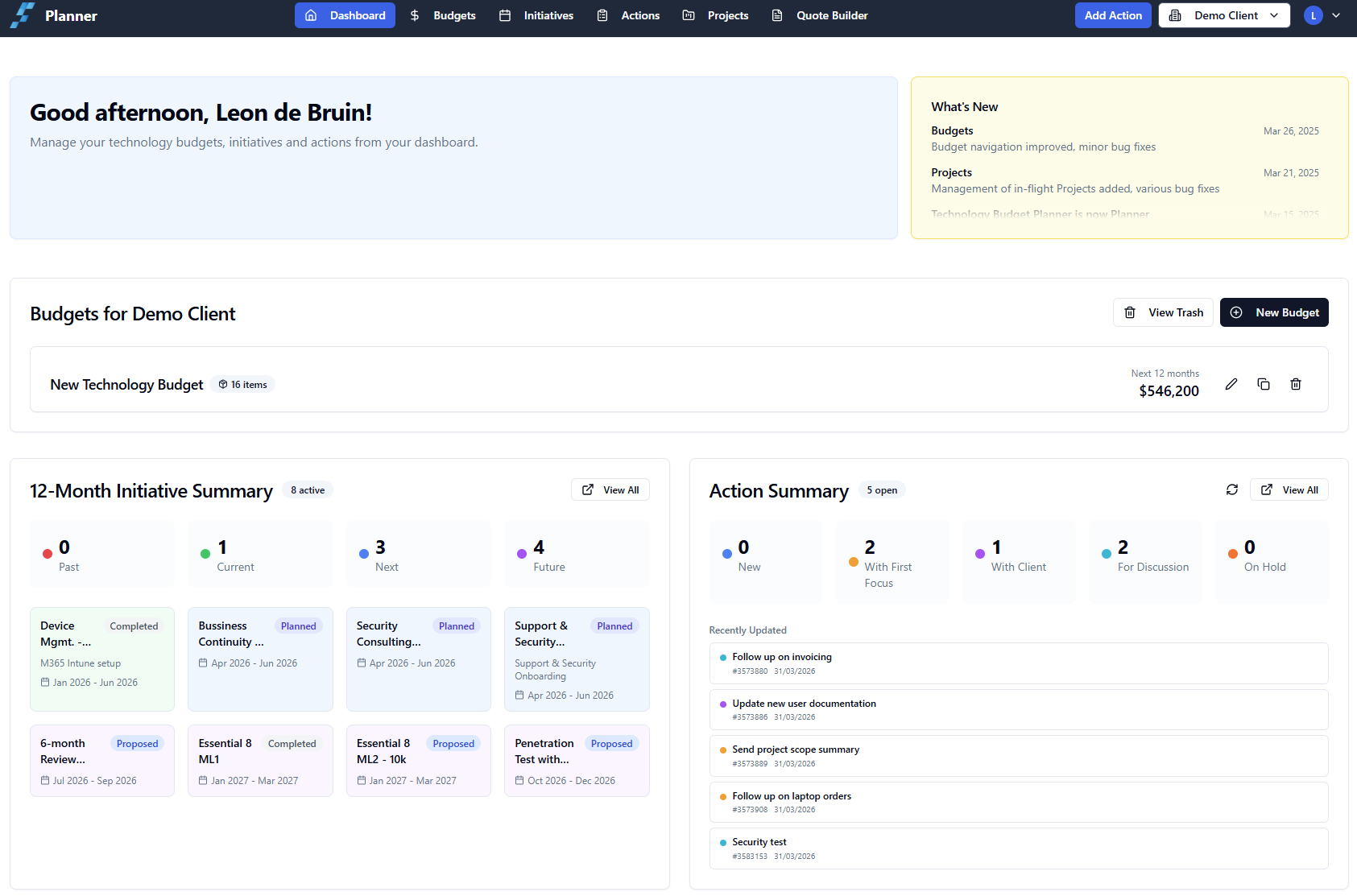
Planner is the evolution of the Technology Budget Planner — a major upgrade that brings together everything you need to manage your technology initiatives and track actions in one centralised platform.

Planner introduces a suite of powerful new capabilities, giving you greater visibility and control over your technology roadmap and outstanding work items.

You can access Planner directly at planner.firstfocus.com.au. The previous URL will continue to work if you have it bookmarked.

Planner dashboard

Initiatives

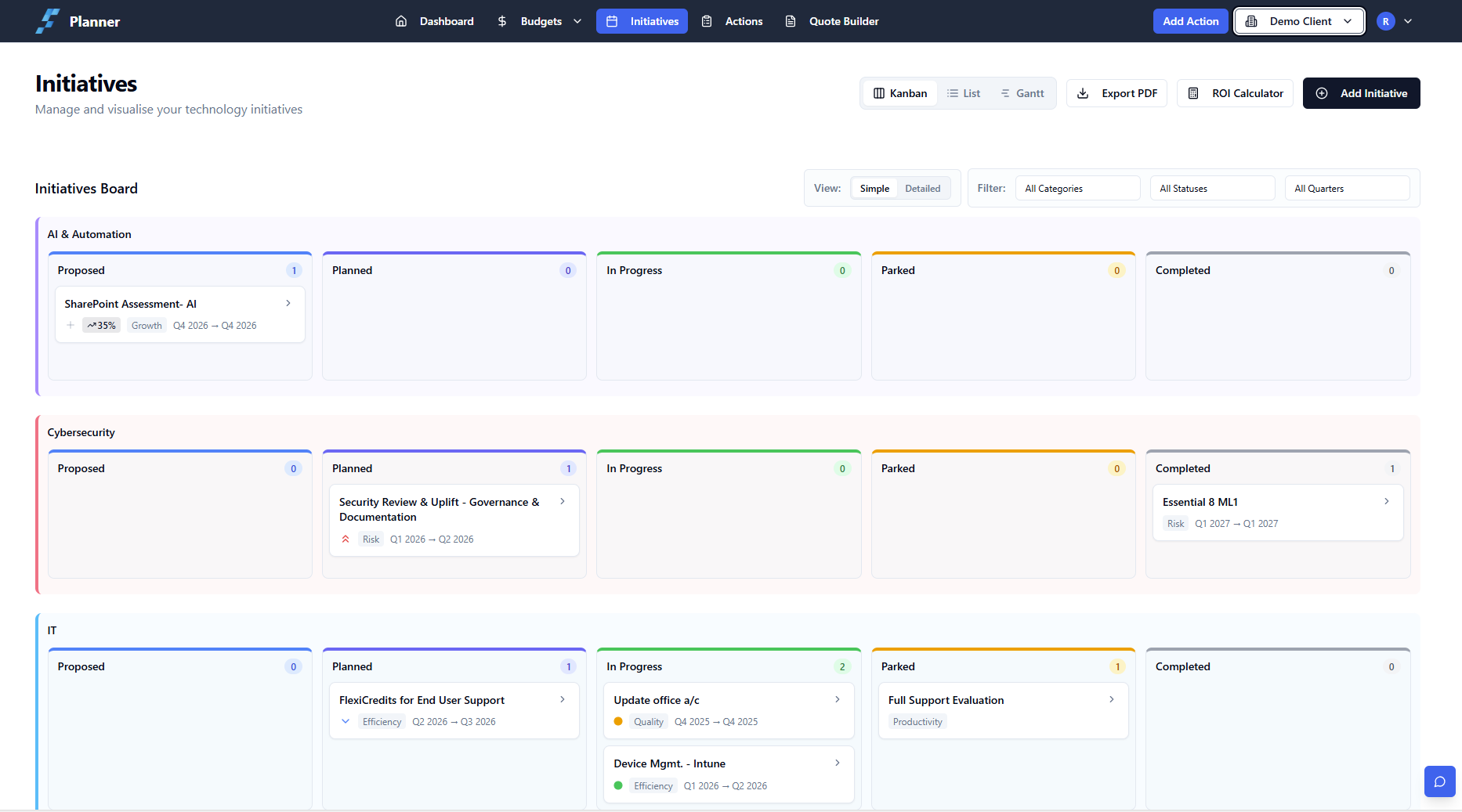
Initiatives has received a major overhaul. The default view is now a Kanban board, organised into three core categories to reflect the key pillars of your technology environment:

  • AI & Automation
  • Cybersecurity
  • IT

This gives you a clear, at-a-glance view of where your technology investments are focused and how initiatives are progressing across each area.

Additional Initiatives features:

  • ROI Calculator — now available as a convenient slide-out panel directly within Initiatives, allowing you to calculate return on investment without leaving the page
  • Save ROI to an Initiative — attach a completed ROI calculation directly to an Initiative for future reference and planning conversations
  • PDF Exports — export any Initiative as a professionally formatted PDF, ideal for sharing with stakeholders
Planner Initiatives Kanban board

Actions

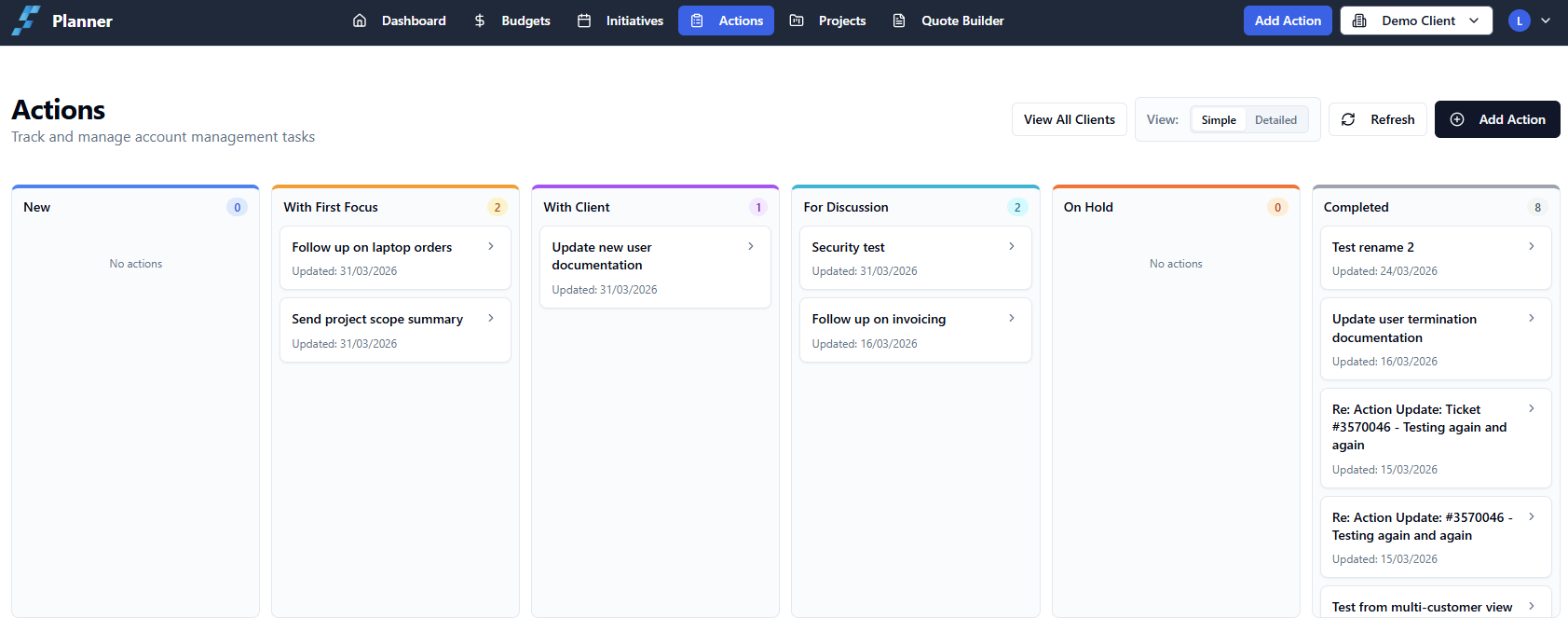
Actions is the new module within Planner. It gives you a clear and organised view of all work items related to your account, ensuring nothing is missed and everything is easy to track.

Actions includes:

  • R-Tickets and Pre-Sales tickets in dedicated, clearly organised components
  • Due dates displayed against actions
  • User assignment for clear ownership and accountability
  • Email updates with replies threading directly back into the relevant ticket automatically
  • Action Summary on Dashboard for outstanding and recent actions at a glance
Planner Actions board

Meet Ashley – Your Planner AI Assistant

Planner's built-in AI assistant is Ashley. Ashley has been significantly upgraded and can help you stay on top of your workload directly within Planner by:

  • Adding new actions on your behalf
  • Updating existing actions with new information
  • Prioritising actions based on your input

Simply describe what you need and Ashley will take care of it — making it faster and easier to manage your actions without manual data entry.

Getting Started with Planner

Getting up and running with Planner is straightforward. Here's where to begin:

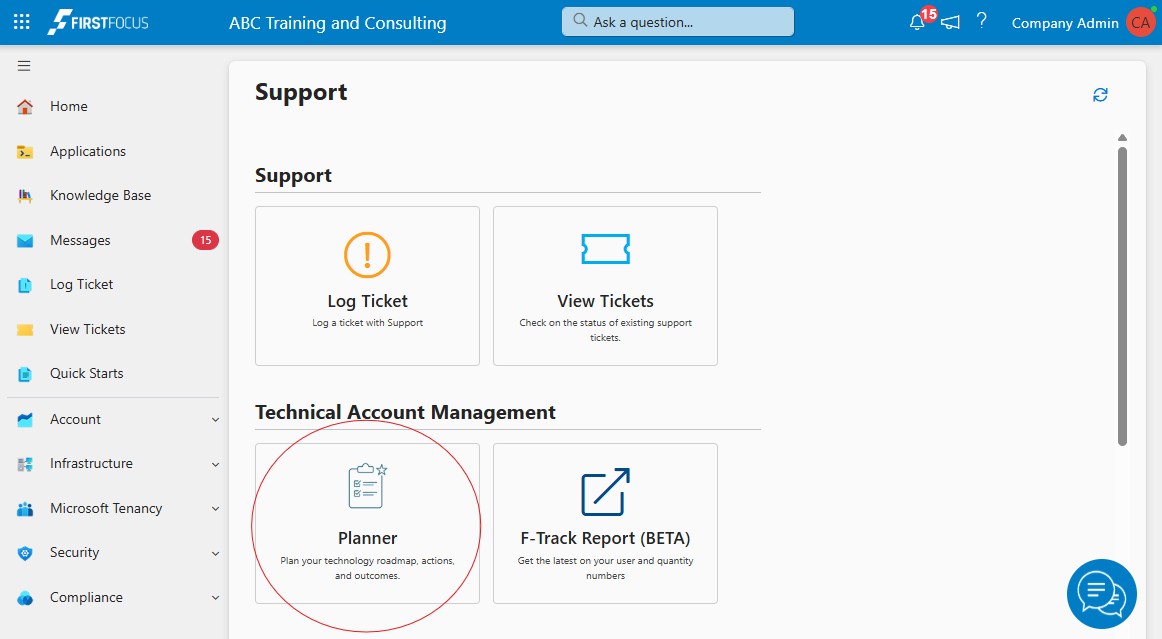
  1. Access Planner: Navigate to planner.firstfocus.com.au or access it via F-Connect.
  2. Explore your Initiatives: Open the Kanban board to review your current initiatives across AI & Automation, Cybersecurity, and IT.
  3. Review your Actions: Check the Actions module for any outstanding items relevant to your account.
  4. Try Ashley: Ask Ashley to add, update, or prioritise an action to experience how AI assistance can simplify your workflow.
Getting started with Planner from the F-Connect support page
Sam profile picture

Sam – Your AI Triage Assistant

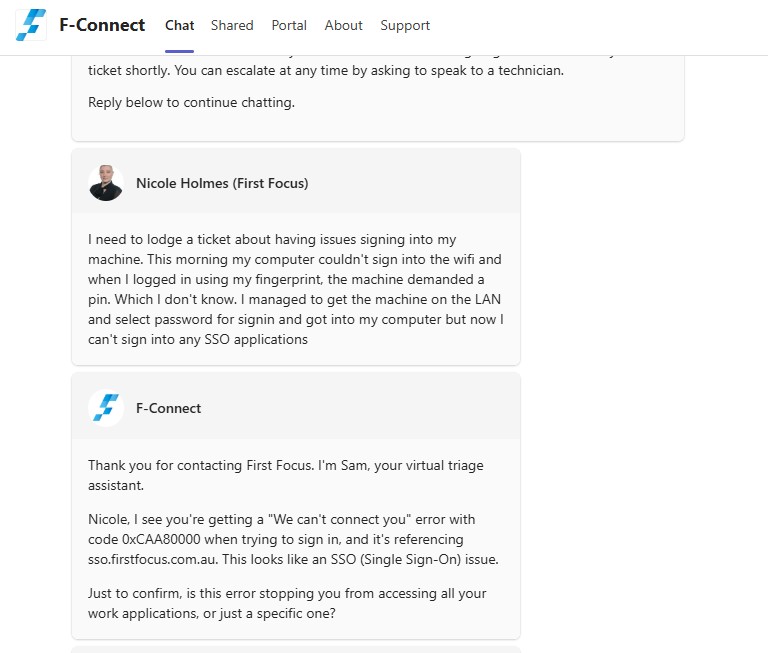
Sam helps you get to the right support outcome faster by guiding the conversation before a ticket is formally raised.

Introduction

Sam is your AI-powered triage assistant, here to make your support experience faster and smarter. Whether you have a question about your environment, need advice on an issue you're facing, or want to work through a problem before a ticket is raised, Sam is your first point of contact.

Sam is designed to understand your situation, ask the right questions, and provide meaningful guidance — so that when a support ticket is lodged, it already contains everything needed to get you the best possible outcome.

Sam responding to a support conversation

What Sam Can Do

  • Understand your issue - Describe what you're experiencing in plain language and Sam will help assess the situation and provide advice before any ticket is lodged.
  • Answer your questions - Sam can respond to questions about your environment, common issues, and how things work.
  • Gather the right details - Sam will ask relevant follow-up questions to ensure all necessary information is captured accurately.
  • Read screenshots - You can share screenshots directly with Sam and he will analyse them as part of understanding your issue.
  • Learn over time - Sam retains information based on your previous interactions and tickets, meaning the more you engage with him, the better he becomes at understanding your environment and providing tailored support.
Sam available in Microsoft Teams

How to Contact Sam

You can reach Sam through either of the following channels:

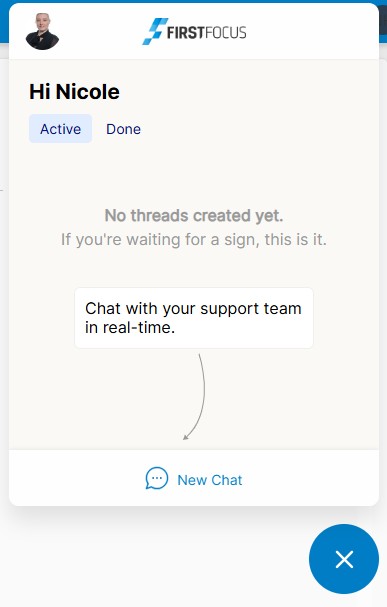
  • F-Connect Chat - Click the Chat icon within the F-Connect portal to start a conversation with Sam instantly.
  • Teams Chat - You can also contact Sam through Microsoft Teams chat when working in Teams.
  • Email - Send your query to support@firstfocus.com.au and Sam will pick it up from there.
F-Connect chat icon for contacting Sam

Tips for Using Sam

  • Be descriptive - The more detail you provide about your issue, the better Sam can assist. Include what you were doing when the issue occurred, any error messages you saw, and how long the problem has been happening.
  • Attach screenshots - Sam can read and interpret screenshots, so don't hesitate to include them. A picture can save a lot of back-and-forth.
  • Ask before you assume - Not sure if something is a bug or expected behaviour? Ask Sam first. He can often clarify without the need to raise a ticket at all.
  • Engage regularly - Sam learns from your interactions. The more you use him, the more familiar he becomes with your environment and preferences, resulting in faster and more accurate assistance over time.
  • Use natural language - There's no need for technical jargon. Simply explain what's happening as you would to a colleague and Sam will take it from there.

A Note on Ticket Lodgement

Sam's role is to assist and advise before a ticket is formally lodged. This ensures that when a ticket is created, it is accurate, complete, and prioritised correctly — saving time for both you and the support team.

There are a few ways to raise a request in F-Connect. You can select a category for our support team to review, start a live chat with a technician, or choose from nine predefined options that are processed automatically using AI.

This section walks you through how to log a request — and how to search, track, and manage existing ones.

F-Connect Manual 1

Log a New Ticket

Log a Ticket Through F-Connect at Any Time

You can log a ticket through F-Connect at any time, and you'll receive support. It also offers benefits, such as making the process smoother and sometimes even faster. The app will guide you through each step.

Log a New Ticket 1

Find the "Log a Ticket" Button

  1. On the home screen, there's a button to log a ticket, click on it.
  2. You can also navigate to Get Support and log a ticket on the left menu bar.
Log a New Ticket 2

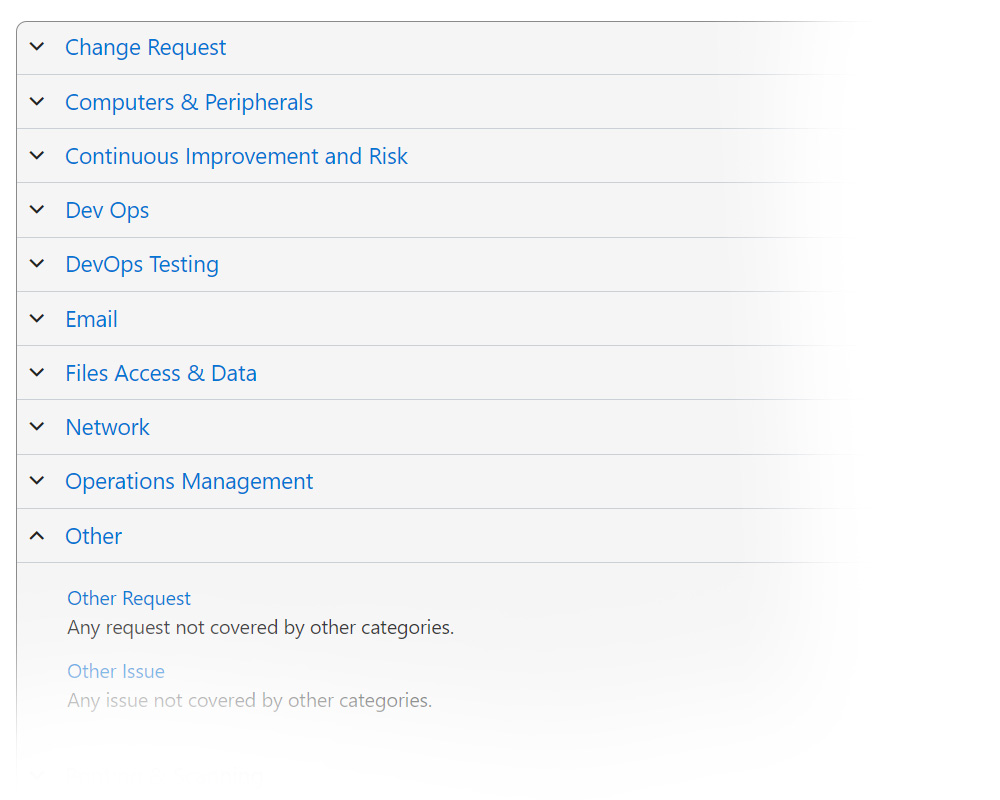
Pick the Category That Fits Best

Choose the category that best matches your request.

If your issue or request isn't covered by the listed categories, select "Other Request" or "Other Issue."

Log a New Ticket 3

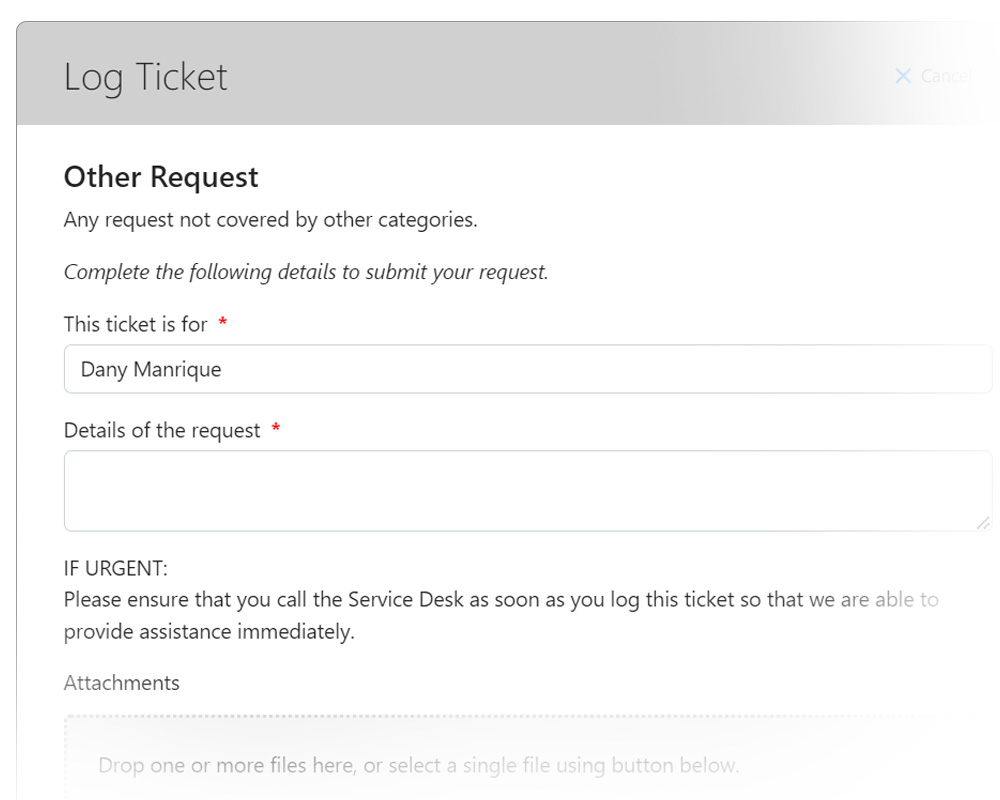
Provide the Information

Depending on the category you selected, a form will appear with the required details to resolve your specific ticket.

Please provide as much information as possible and click Submit.

Once submitted, your ticket will be sent directly to the Support Desk and, in some cases, automation or AI will assist in resolving it faster and more accurately.

Log a New Ticket 4

Chat Feature

Chat Live with a Technician

The Chat Feature in F-Connect is designed to enable end users to communicate directly with a technician for a fast response.

This feature allows users to initiate a chat session with the service desk to create or follow up on existing tickets

Please note: When you initiate a chat, our AI Triage Assistant Sam will respond first to gather any additional details and offer initial support. If Sam is unable to resolve your query, your chat will be picked up by a Technician who will assist you live.

Chat Feature 1

Chat is Always Just a Click Away

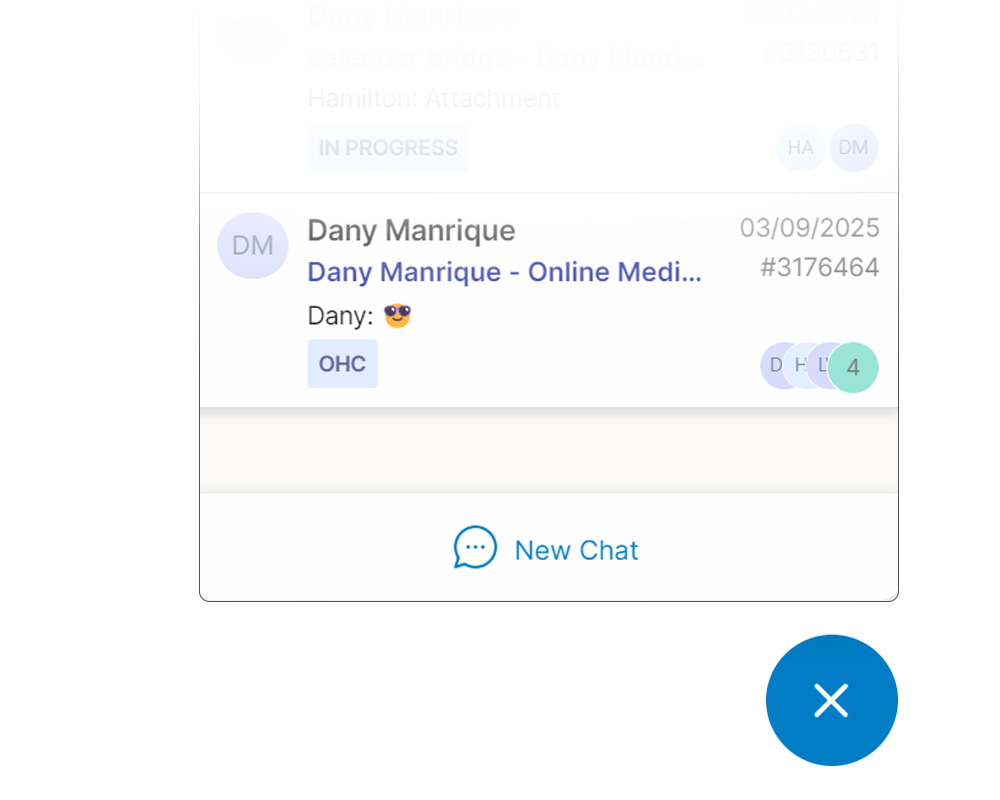
Open F-Connect using your desktop application, web portal, Microsoft Teams app or on your smartphone. You'll see a chat icon always located in the bottom right corner.

Chat Feature 2

Ready to Chat

Click it to view your open chats or start a new one for a new ticket. This allows you to continue an existing conversation or open a new one for a request or issue.

Chat Feature 3

Self-Service Tickets

Self-Service Tickets in F-Connect

The self-service ticket feature in F-Connect lets users manage support requests easily through customised forms.

Tickets are automatically processed using automation and AI for fast, accurate handling.

Whether reporting an issue or requesting help, this feature simplifies the process and boosts productivity.

Self Assessment 1

Self-Service Tickets

There are currently nine different types of self-service tickets:

  • Access a Shared Mailbox
  • Call Diversion (Teams)
  • Convert User to Shared Mailbox
  • Forward Another User's Mailbox
  • Forward My Mailbox
  • Geoblocking Exemption
  • Overseas Travel Request
  • New Shared Mailbox
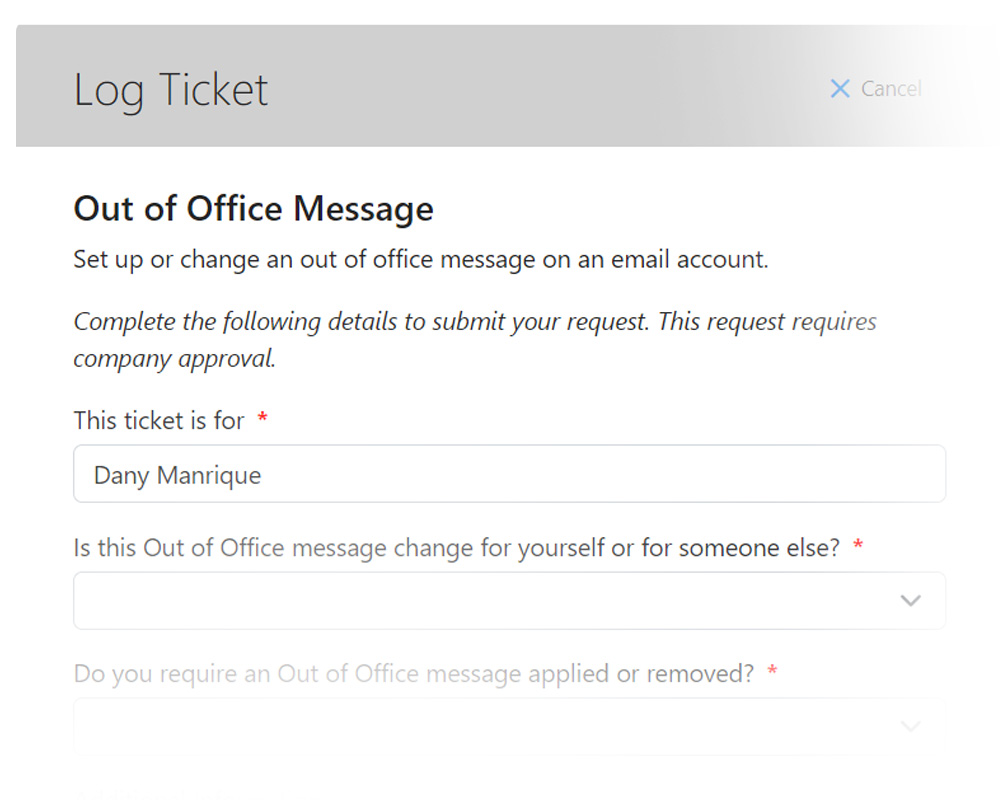
  • Out of Office Message
  • Update User Details
  • Standard Software Installation

These requests will be distributed across the different categories on F-Connect.

Self Assessment 2

Complete the Required Fields

Fill out all mandatory fields in the form with accurate information. This ensures that your request is clearly understood and can be processed efficiently.

Self Assessment 3

Submit and Track Your Ticket

After completing the form, submit it to automatically generate a ticket. You will receive a ticket number, which you can use to track the status of your request within the F-Connect platform.

Self Assessment 3

Search and Track Tickets

Search and Track any Ticket

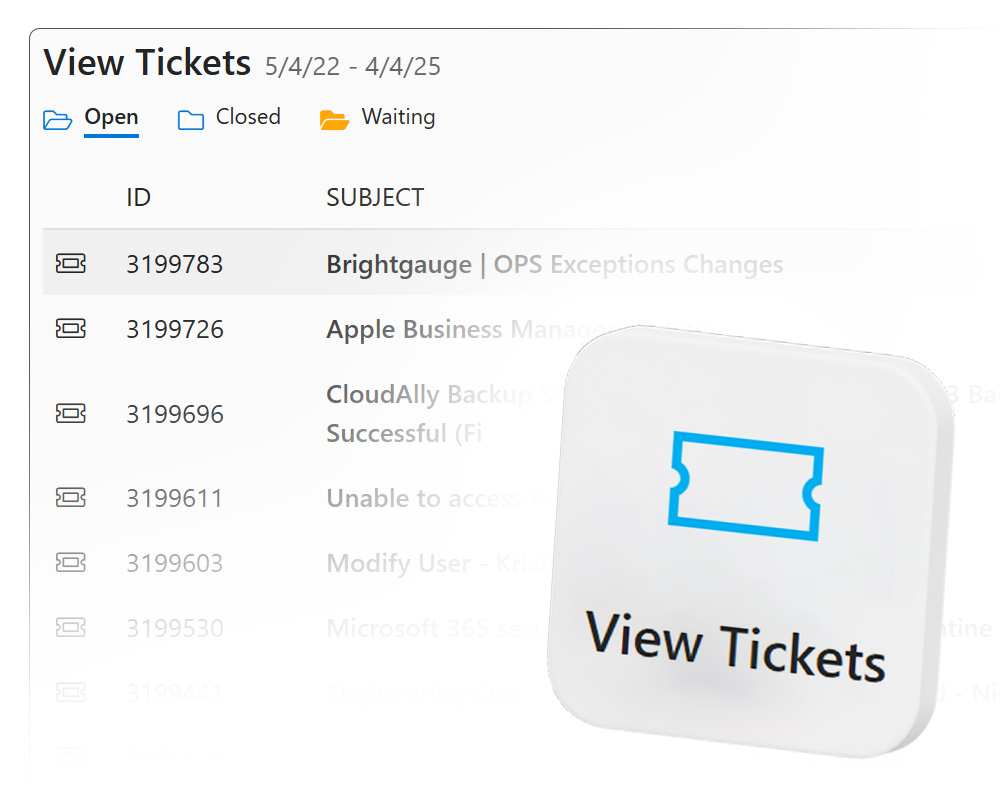
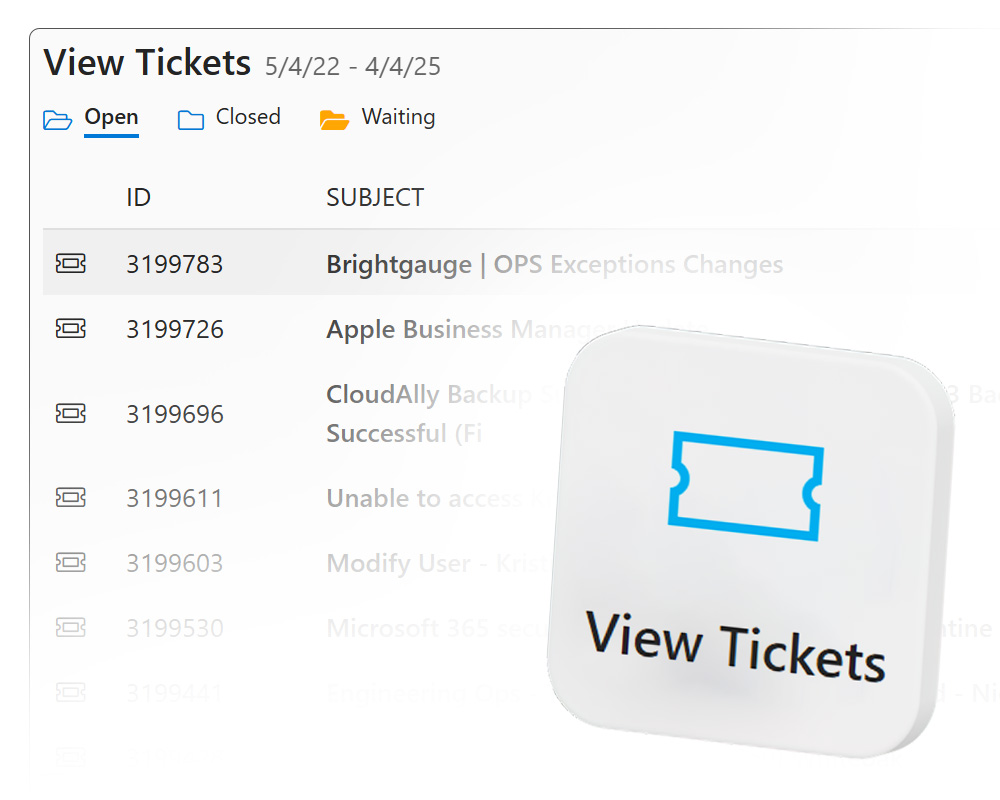
You can search and track any ticket you've created or interacted with to check its status, add more information, fast-track it, or cancel it.

You can do this through the View Tickets button, located on the home screen of F-Connect, or via the Get Support section in the left-hand menu.

Search and Track 1

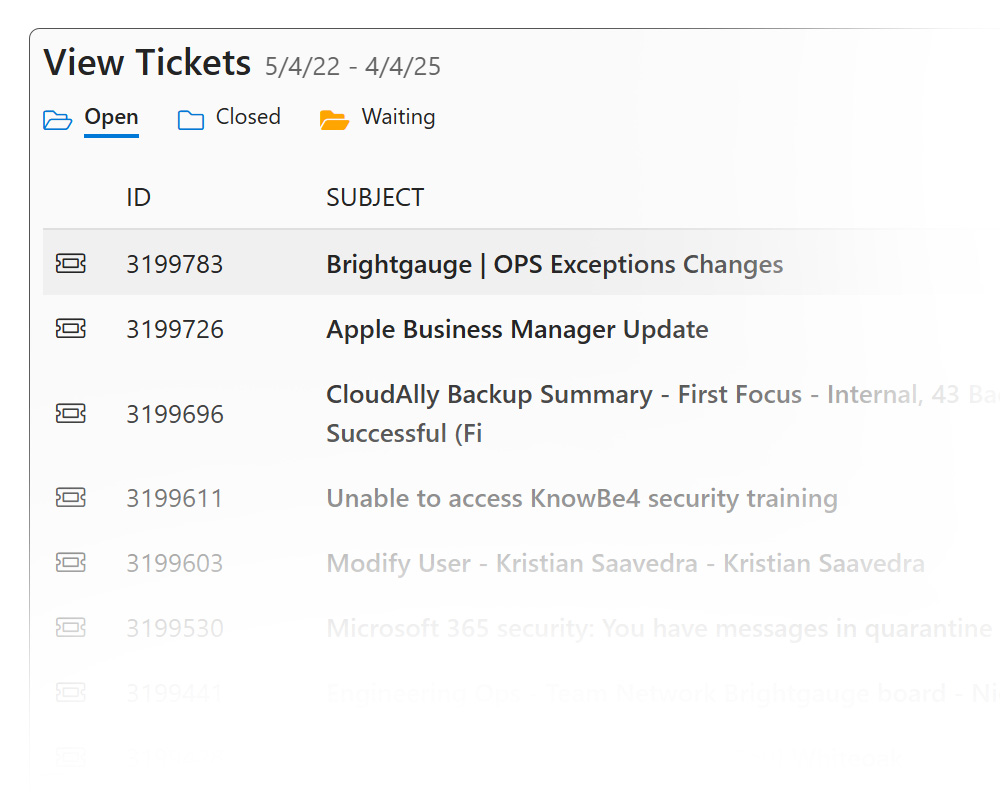
View All Your Tickets

A list of all your tickets will appear, divided into three sections:

  • Open
  • Closed
  • Waiting (these are tickets that require an action to proceed)
Search and Track 2

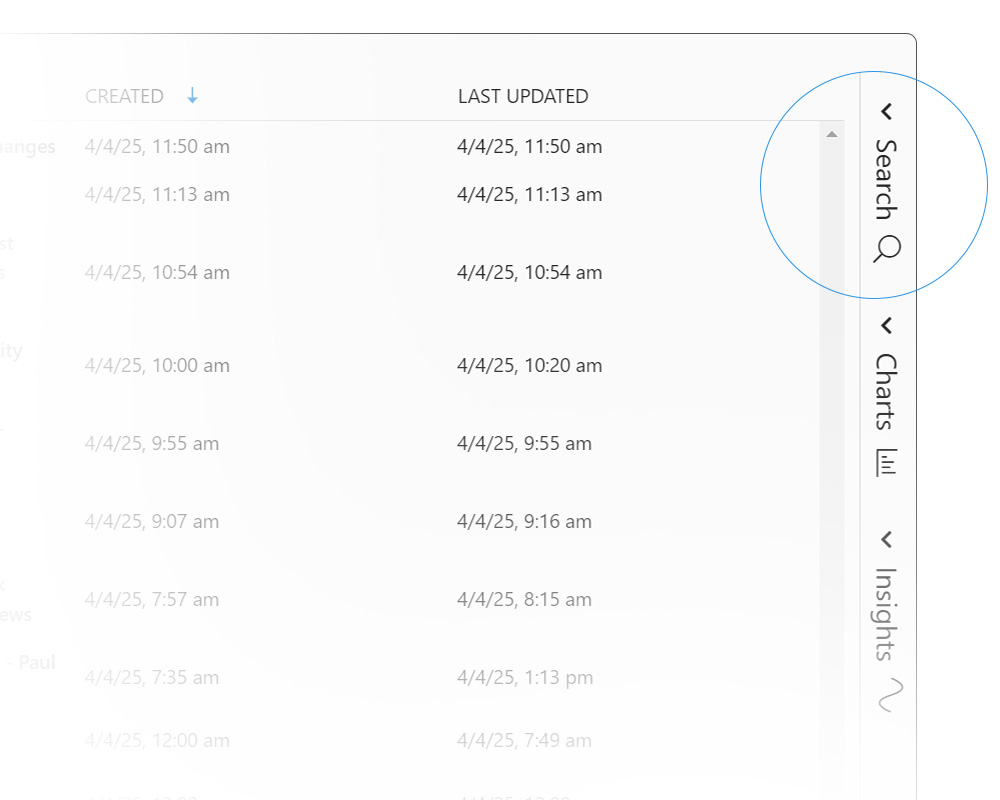
Advanced Ticket Search

If it is visually difficult to locate your ticket, you can use the advanced ticket search feature. Simply click on Search and apply filters to quickly find the ticket you're looking for.

Search and Track 3

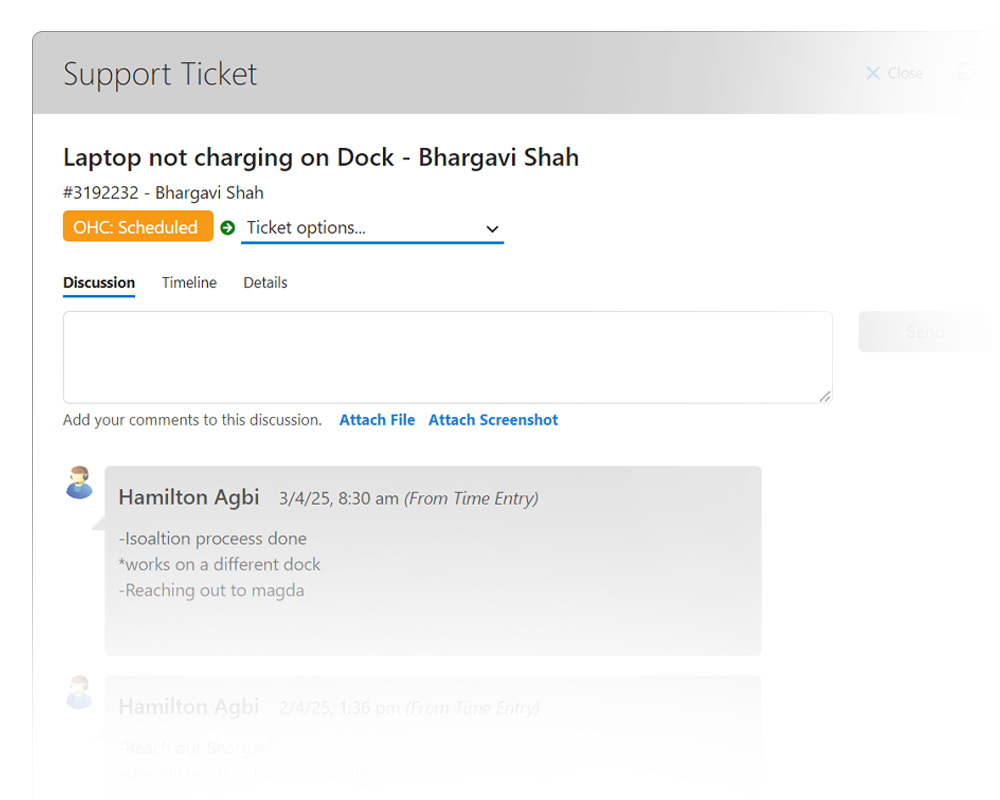
Open a Ticket to See More

Once you've found the ticket you're looking for, simply click on it to view all its details.

Search and Track 4

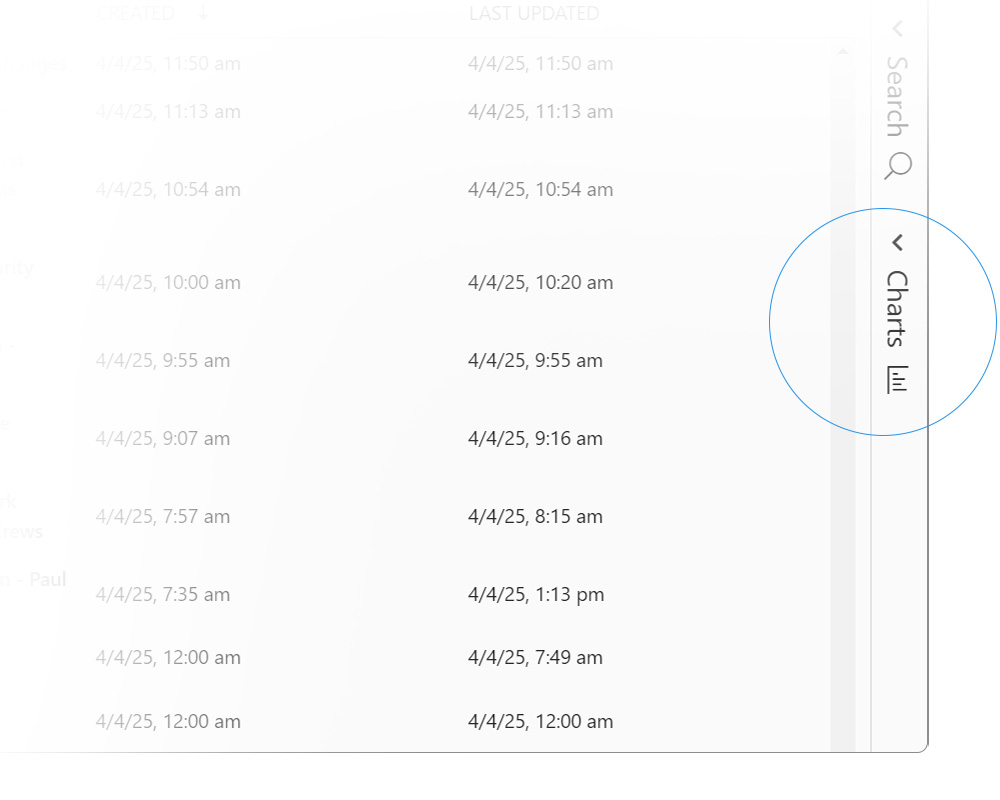
Get More Data

In the View Your Tickets section, you'll also find useful charts displaying the number of tickets submitted each month, along with other insightful information.

Search and Track 4

Close or Cancel Tickets

Close or Cancel a Ticket

If your issue or request has been resolved, you can close your ticket. If you no longer need it, you can cancel it. Follow the next steps to learn how.

Close or Cancel 1

Find the ticket

Find the ticket you want to close or cancel. Remember, you can do this via the View Tickets option located on the home page.

(Click here if you are having trouble finding your ticket.)

Close or Cancel 2

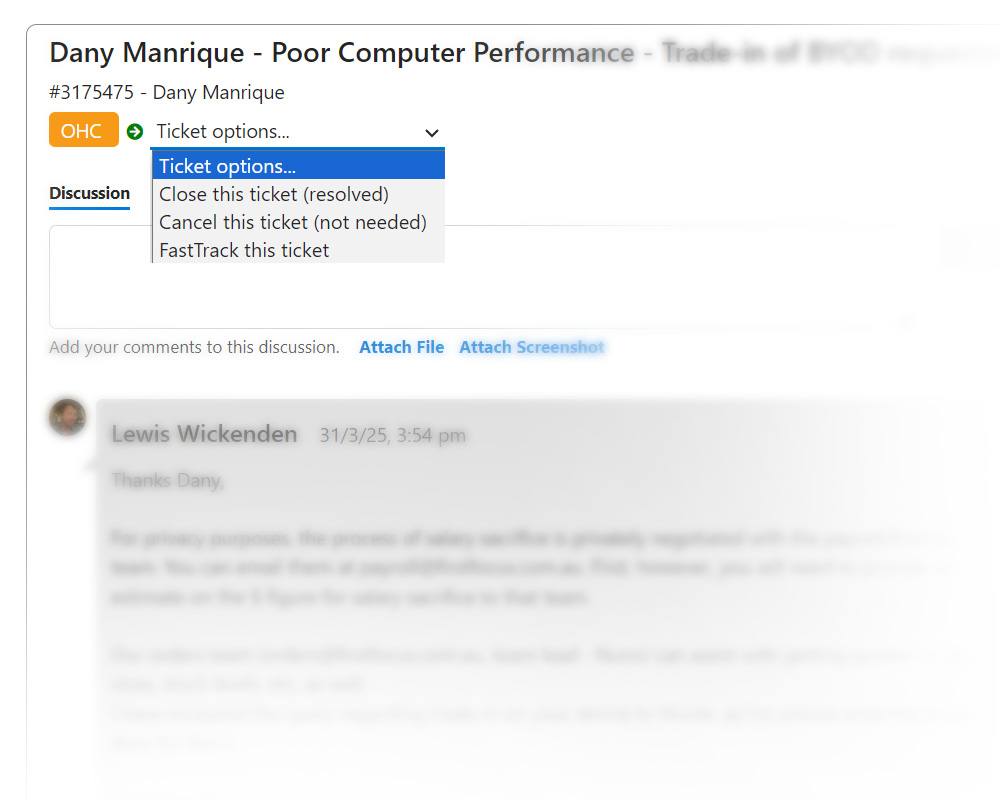
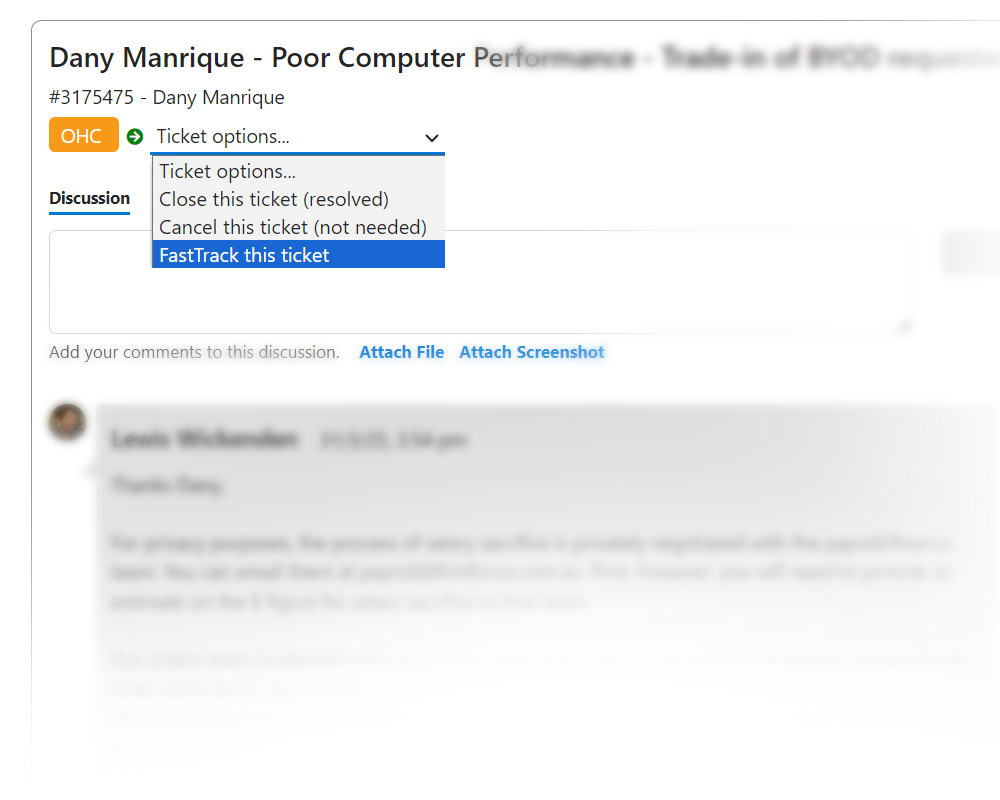
Change the Status of the Ticket

Once you find it, you'll see its status, the technician assisting you, the complete chat history, timeline, and details.

To close or cancel it, simply go to the drop-down menu and select Close if it has been resolved, or Cancel if you no longer need it.

Close or Cancel 3

The Ticket is Now Closed/Cancelled

The ticket will be updated in our records and will serve as a source of information for future events. For now, you don't need to worry about it. It has been closed or cancelled.

Close or Cancel 4

FastTrack a Ticket

FastTrack any Ticket

The Fast Track option in F-Connect allows you to escalate the priority of a ticket. Selecting Fast Track prompts the team to re-evaluate the impact and urgency of the ticket.

FastTrack 1

Find the ticket

Find the ticket you want to FastTrack. Remember, you can do this via the View Tickets option located on the home page and also use the advanced search feature inside F-connect.

FastTrack 2

Select FastTrack

Once you find it, you'll see its status, the technician assisting you, the complete chat history, timeline, and details.

To FastTrack it, simply go to the drop-down menu and select FastTrack this ticket if you'd like the team to re-evaluate its priority.

FastTrack 3

The Ticket Has Now Been Fast Tracked

The team will be alerted to re-evaluate the priority of your ticket. If it needs urgent attention, it will be managed promptly and appropriately.

FastTrack 4